Dashboard
The WCP Dashboard is a React-based web interface that gives you full visibility and control over your synchronization engine. It connects to the REST API and provides real-time updates via WebSocket.
Overview
Section titled “Overview”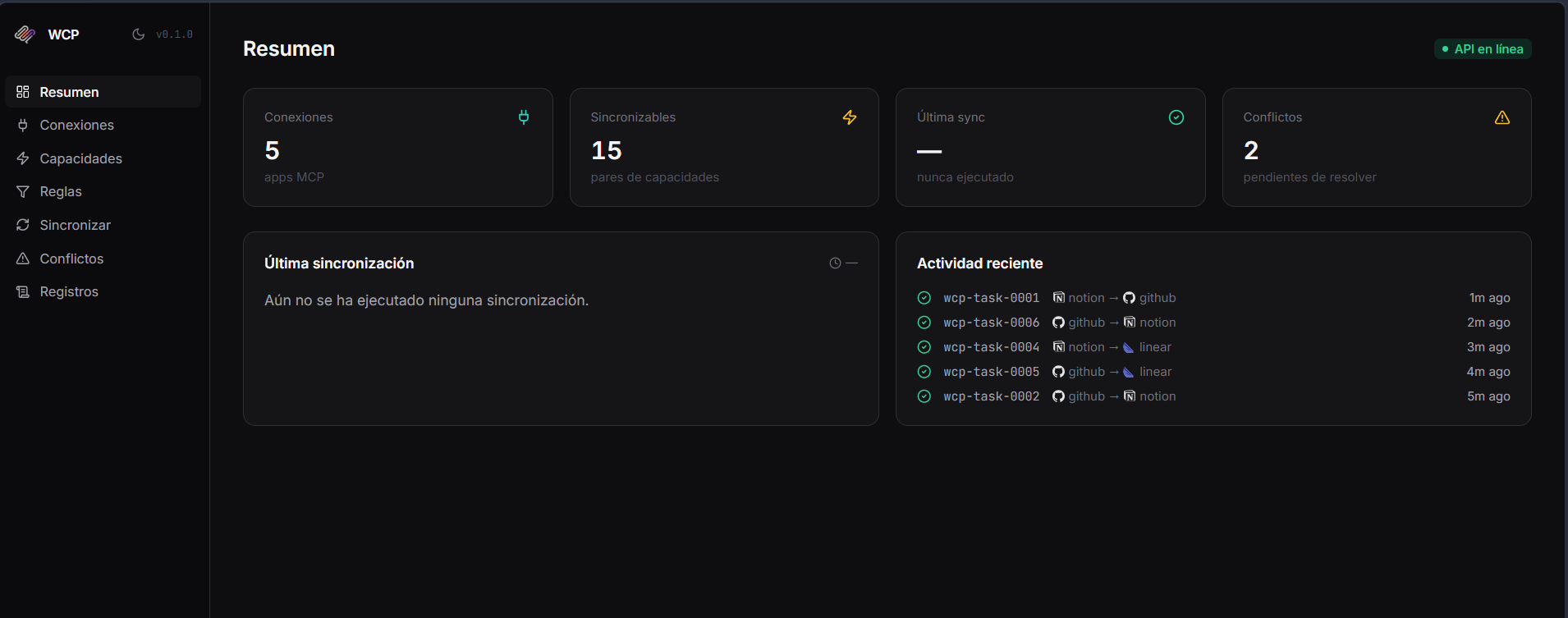
The Overview page is your landing screen after login. It shows:
- Connections — total MCP apps registered.
- Syncable pairs — capability pairs detected across your connections.
- Last sync — timestamp of the most recent synchronization run.
- Conflicts — number of unresolved conflicts requiring attention.
- Last sync details — duration and status of the latest engine run.
- Recent activity — live feed of the most recent sync operations with source → destination flow and relative timestamps.
Connections
Section titled “Connections”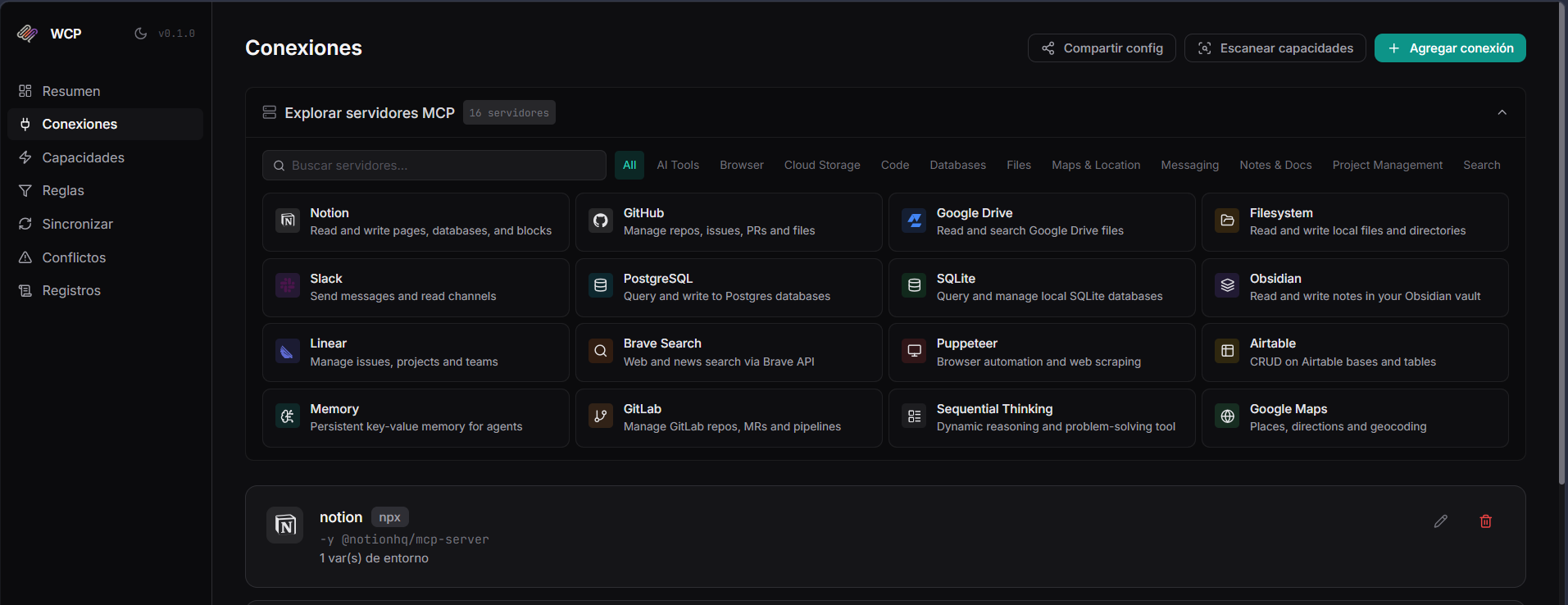
The Connections page manages your MCP server registry.
Connector Catalog — browse 16+ pre-configured MCP servers organized by category (AI Tools, Browser, Cloud Storage, Code, Databases, Files, Messaging, Notes & Docs, Project Management, Search). Click any card to pre-fill the connection form.
Registered connections are listed below the catalog, showing:
- Server name and transport type (
npx,docker,binary) - Package or command
- Number of environment variables configured
- Edit and delete actions
Use + Add connection to register a new MCP server, Share config to export your mcp.json, and Scan capabilities to detect what each server can do.
Capabilities
Section titled “Capabilities”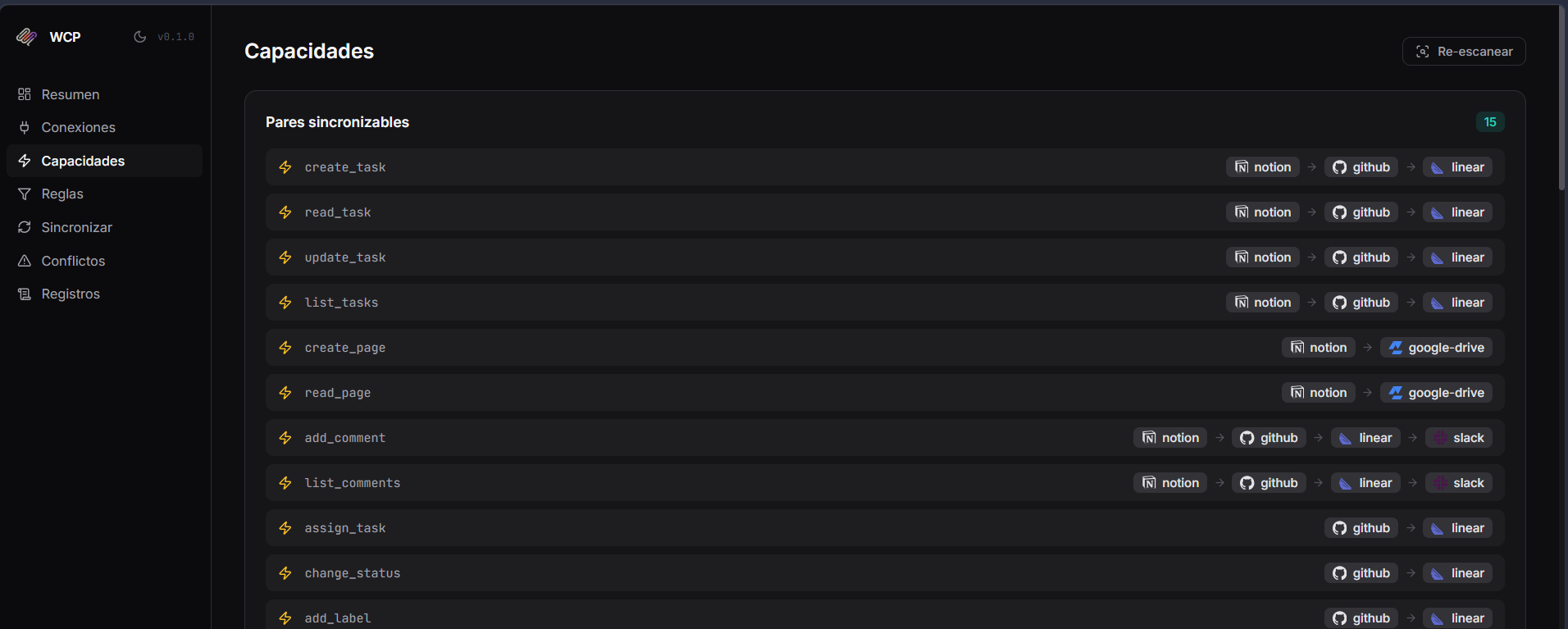
The Capabilities page shows all syncable pairs discovered across your connections. Each row represents a capability name (e.g., create_task, read_task, add_comment) and the connectors that share it.
For example, create_task appears in Notion, GitHub, and Linear — meaning WCP can sync task creation across all three. Capabilities like create_page are shared between Notion and Google Drive.
Use Re-scan to refresh the capability detection after adding or removing connections.
Sync Rules
Section titled “Sync Rules”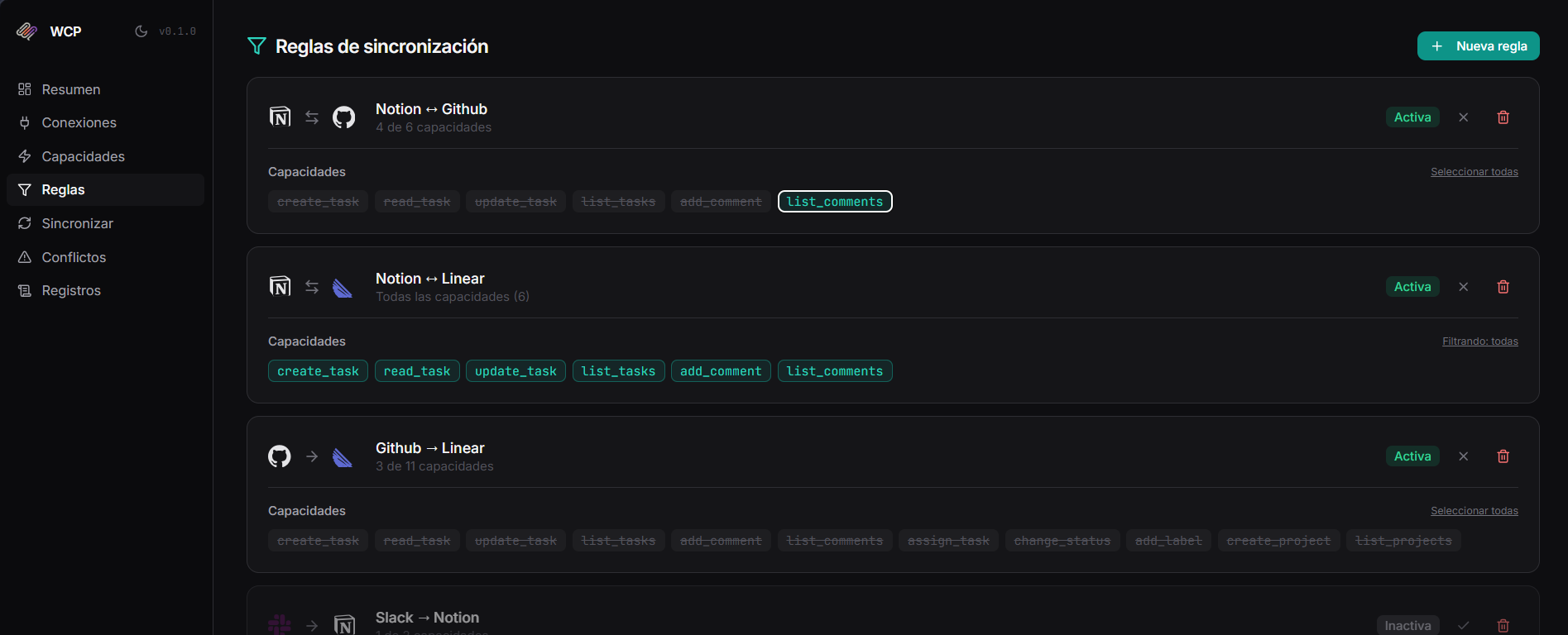
Sync Rules define which capabilities sync between which connections, and in which direction. Each rule shows:
- Direction — bidirectional (
↔) or one-way (→). - Connected apps — shown with their icons (e.g., Notion ↔ GitHub).
- Capabilities — which capabilities are included. Green badges indicate selected capabilities; gray badges are available but not selected.
- Status — Active or Inactive toggle.
- Filter controls — “Select all” to include every shared capability, or pick individual ones.
Click + New rule to define a new sync rule between any pair of connections.
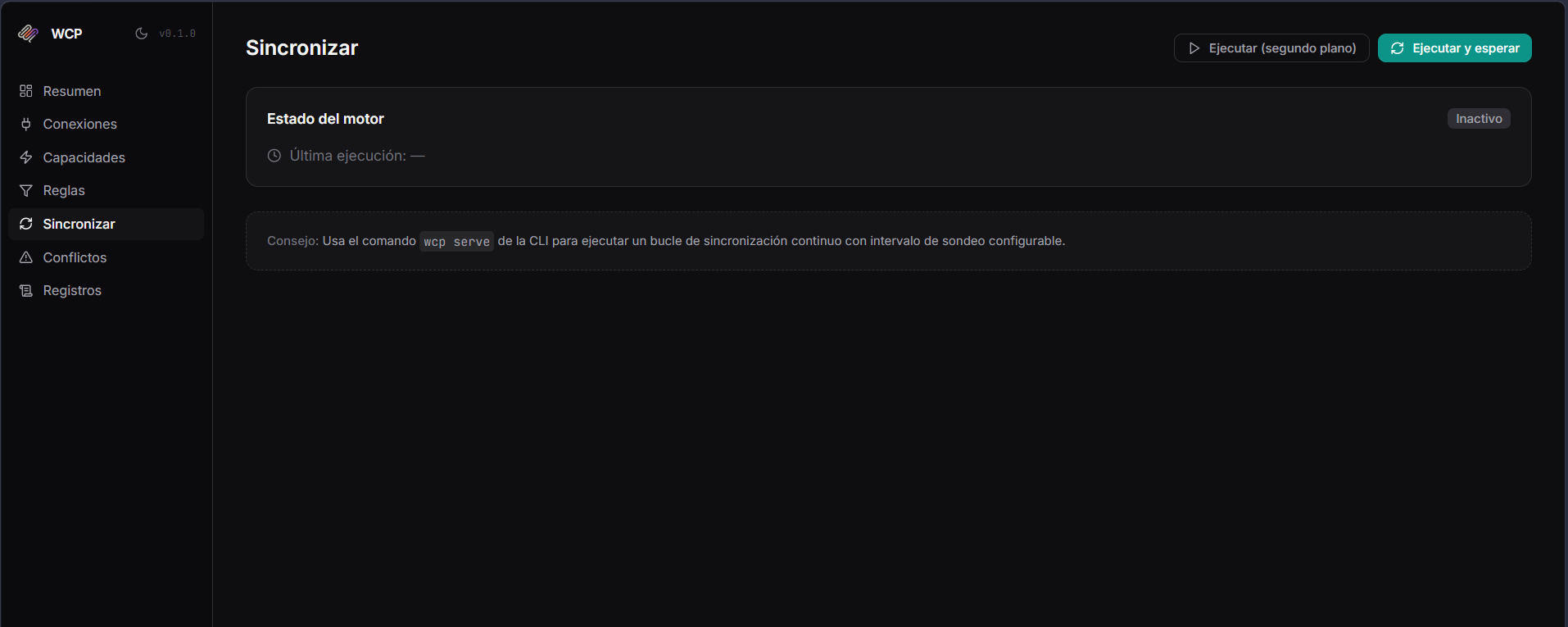
The Sync page controls the synchronization engine.
- Engine status — shows whether the engine is idle or running, with the timestamp of the last execution.
- Run & wait — triggers a sync cycle and waits for the result.
- Run (background) — triggers a sync cycle in the background.
Conflicts
Section titled “Conflicts”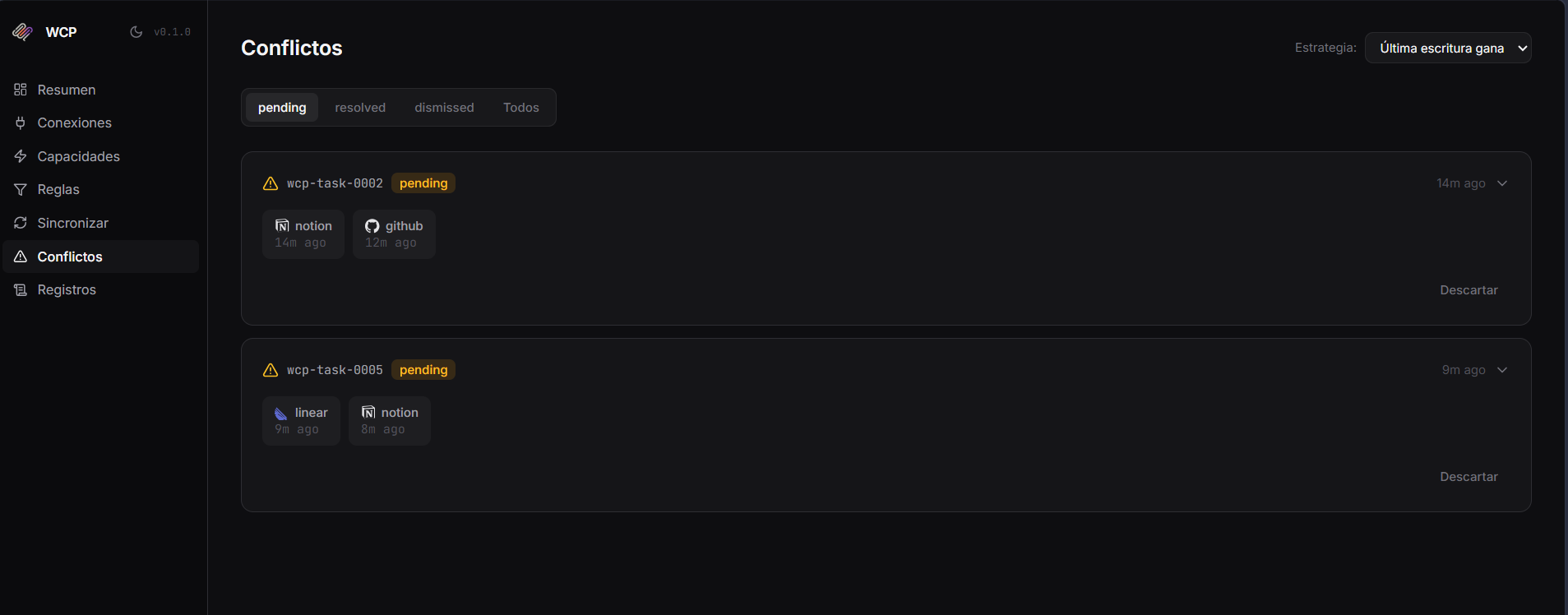
When two connections modify the same entity concurrently, WCP detects the conflict and surfaces it here.
Each conflict card shows:
- WCP ID — the tracked entity identifier (e.g.,
wcp-task-0002). - Status —
pending,resolved, ordismissed. - Competing versions — which apps have conflicting data, with timestamps.
- Actions — dismiss the conflict or expand to inspect details.
Use the Strategy dropdown to set the global resolution strategy:
- Last write wins — the most recent change takes precedence automatically.
- Manual — all conflicts require human review.
Filter by status using the tab bar: pending, resolved, dismissed, or All.
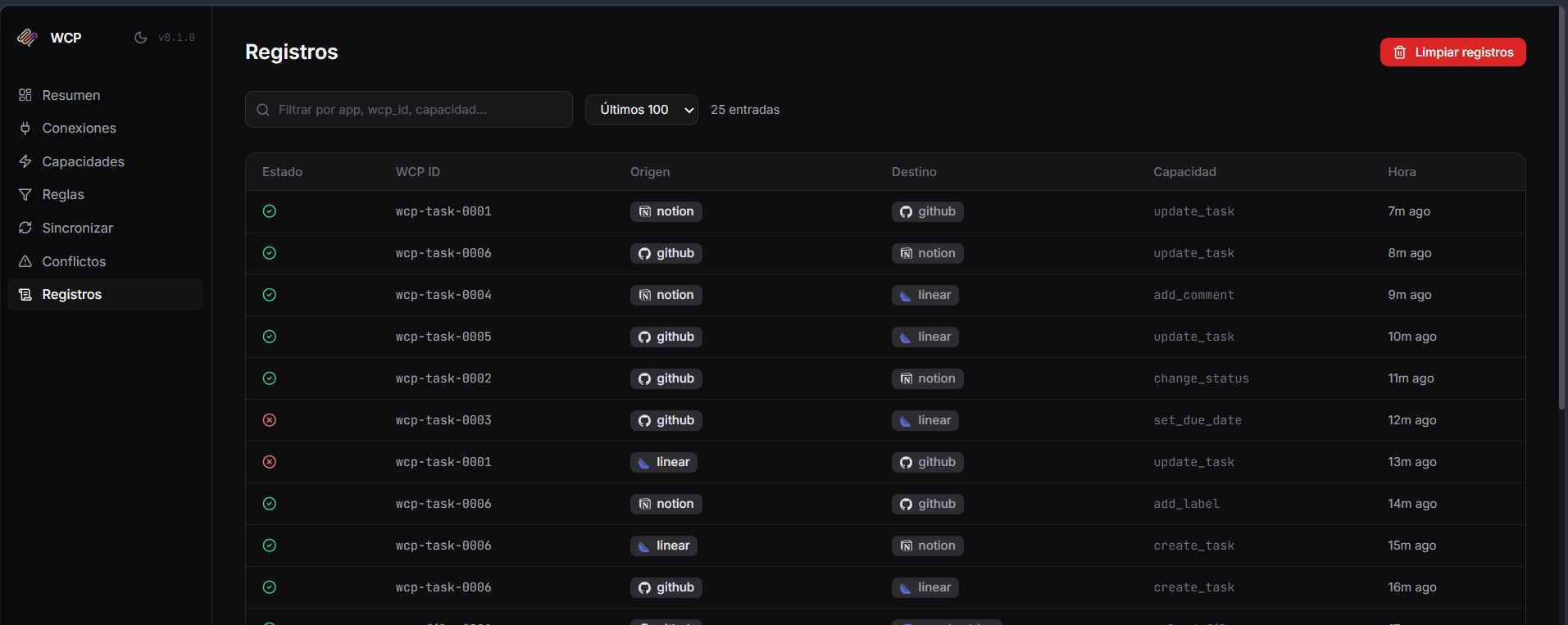
The Logs page provides a detailed audit trail of every sync operation.
Each entry includes:
- Status — success (green) or error (red) indicator.
- WCP ID — the entity that was synced.
- Source → Destination — which app sent data and which received it.
- Capability — the operation performed (e.g.,
update_task,create_task,add_label). - Timestamp — relative time since the operation.
Use the search bar to filter by app name, WCP ID, or capability. The dropdown lets you limit the view to the last 100, 500, or all entries. Use Clear logs to purge the history.
Installation
Section titled “Installation”Requirements
Section titled “Requirements”- Node.js ≥ 18
- A running WCP API server (see Installation)
Development mode
Section titled “Development mode”cd dashboardnpm installnpm run devThe dashboard starts at http://localhost:5173 and proxies API calls to http://localhost:8000.
Production build
Section titled “Production build”cd dashboardnpm run buildThis generates a static dist/ folder that can be served by any web server (Nginx, Caddy, etc.) or placed behind a reverse proxy alongside the API.
Environment variables
Section titled “Environment variables”| Variable | Default | Description |
|---|---|---|
VITE_API_URL | /api | API base URL. Override when hosting the dashboard on a different domain than the API. |
Authentication
Section titled “Authentication”If WCP_ADMIN_PASS is set on the API server, the dashboard will show a login screen. Use the configured credentials to authenticate. Tokens are stored in localStorage and automatically sent with every API request.